
Geofences – taking your Mala GPS tracker to the next level
Step 4 of 5 — Getting started guide
Geofences – taking your Mala GPS tracker to the next level
Geofences make using Mala much simpler, without having to open the app so often.
How is that possible? Simply set them up and let them do the work for you. 💪
If the tracker crosses the geofence boundary, you'll get an instant notification. That way you'll always know where your property, child, or pet is. 📱
Setting up geofences
Geofences make everyday use of Mala easier thanks to notifications whenever the boundary is crossed. Setup is very simple and takes just a few steps. 👣
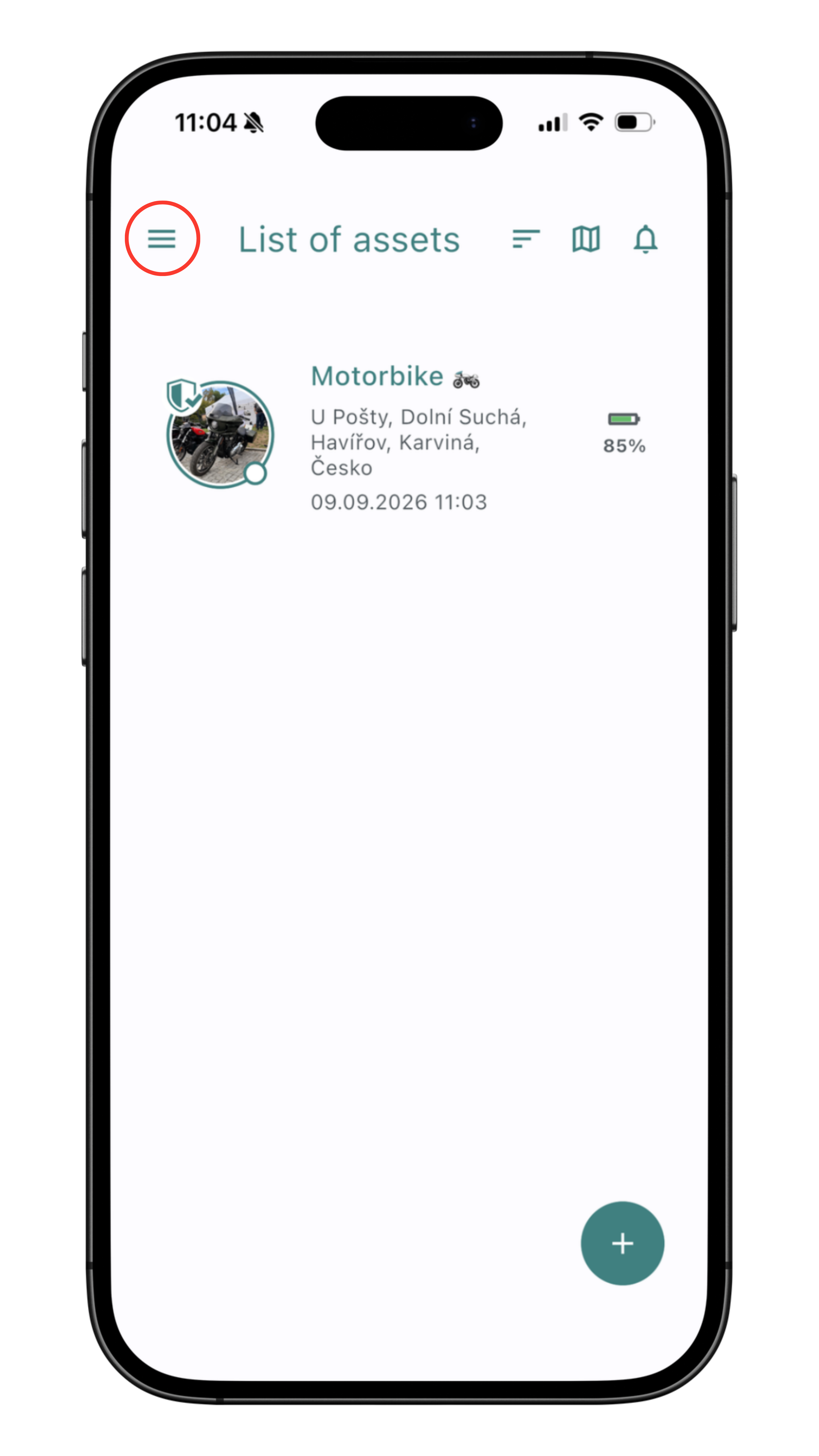
The app's home screen shows a list of your GPS trackers. In the top-left corner, there's a menu that contains the geofences option.
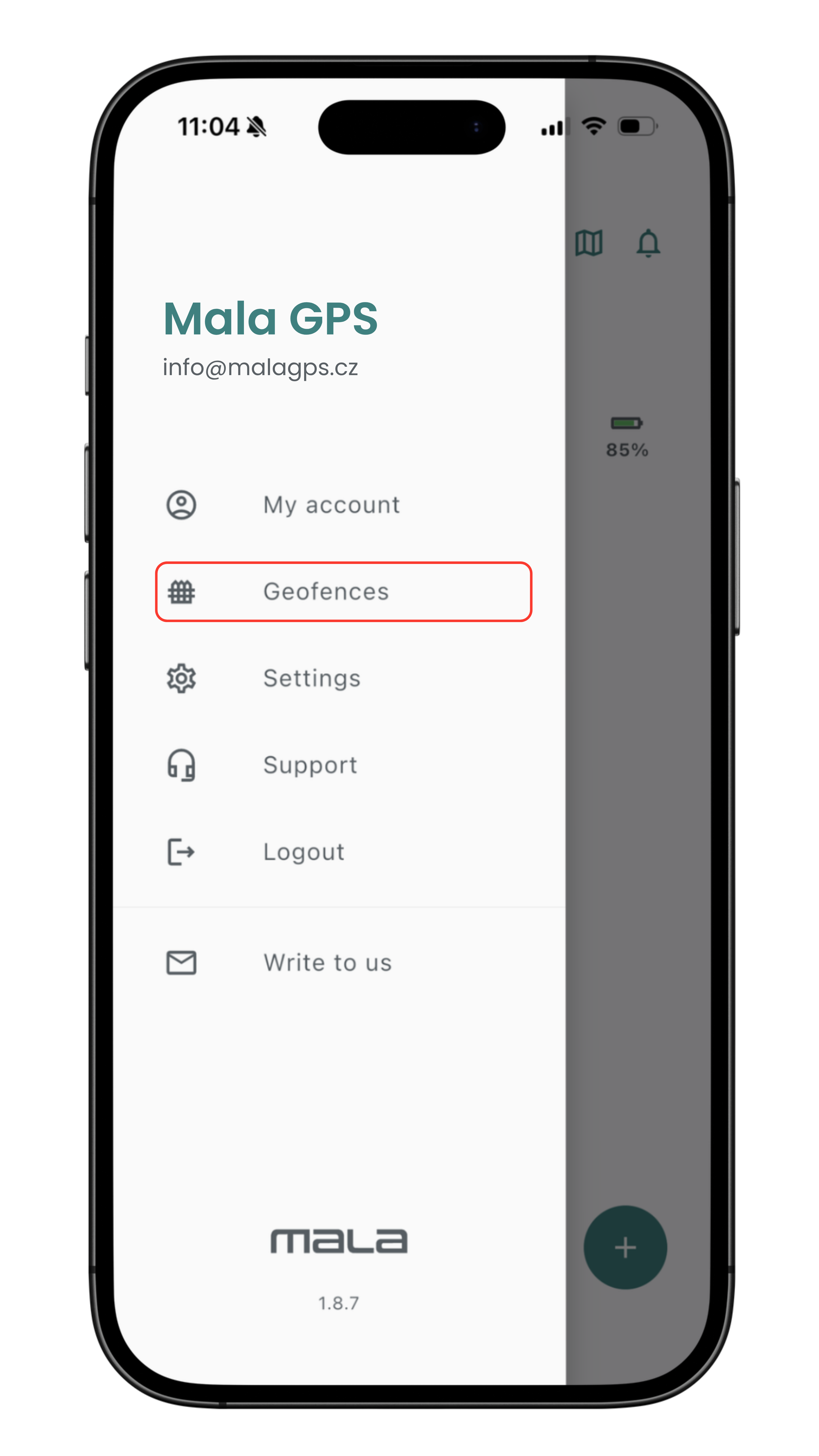
In the menu, choose the Geofences option to open an overview of your geofences.
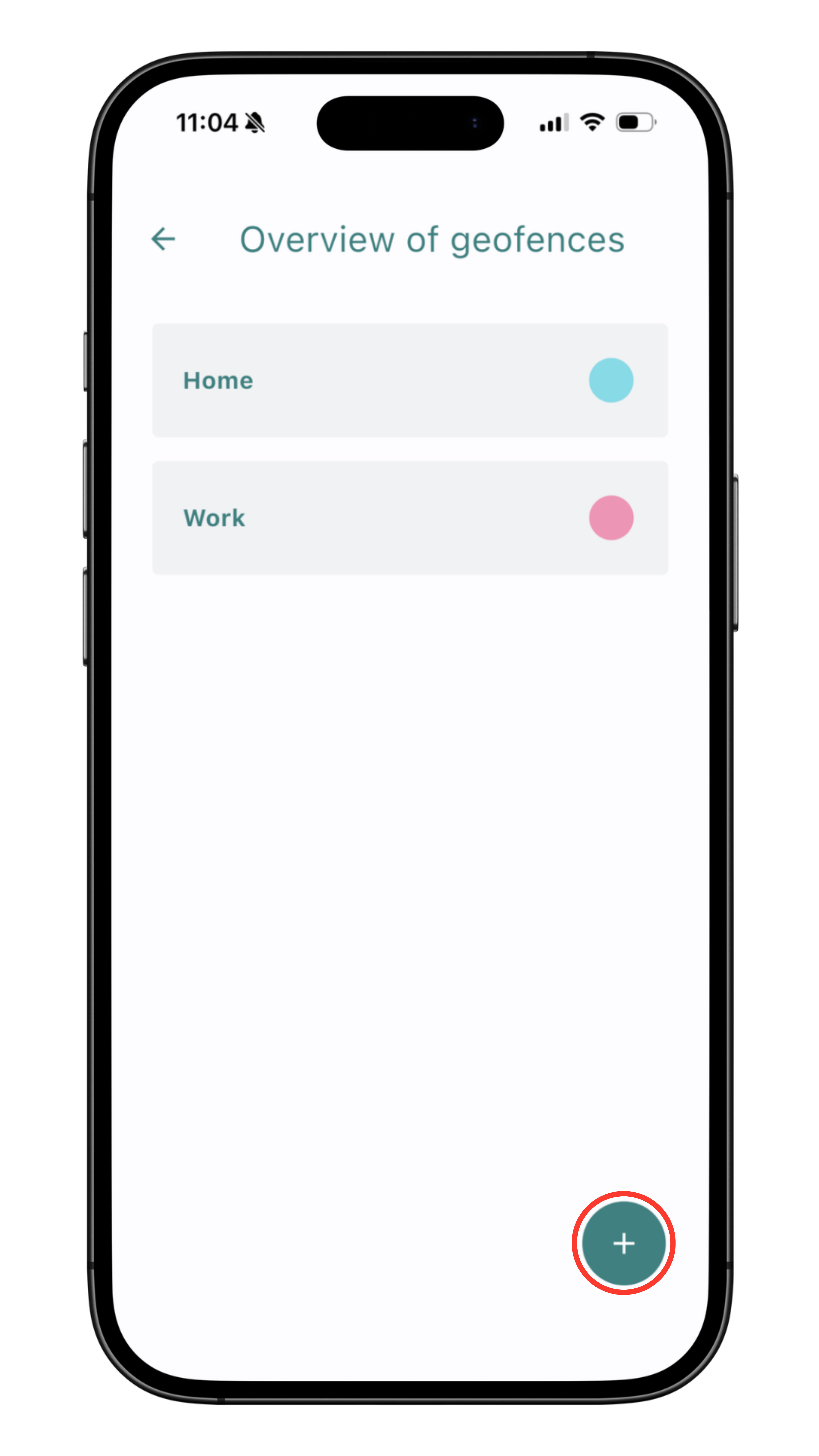
In the geofence overview, you'll see the geofences you've already created. You can add a new one using the "+" button.
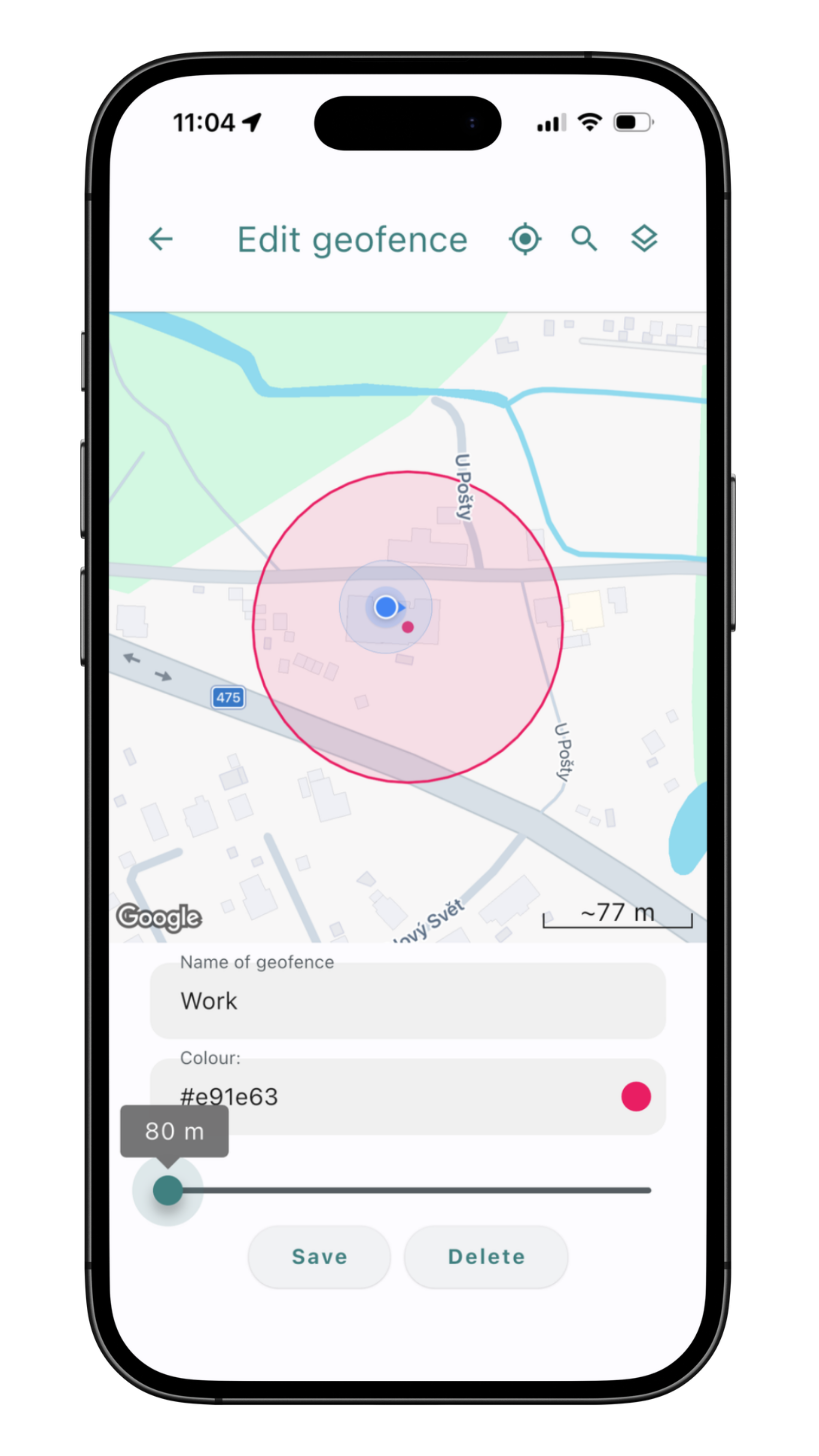
Setting up the geofence itself is as simple as tapping the map 👉 that creates the geofence's center.
At the same time, give the geofence a name — you can also adjust its color and size.
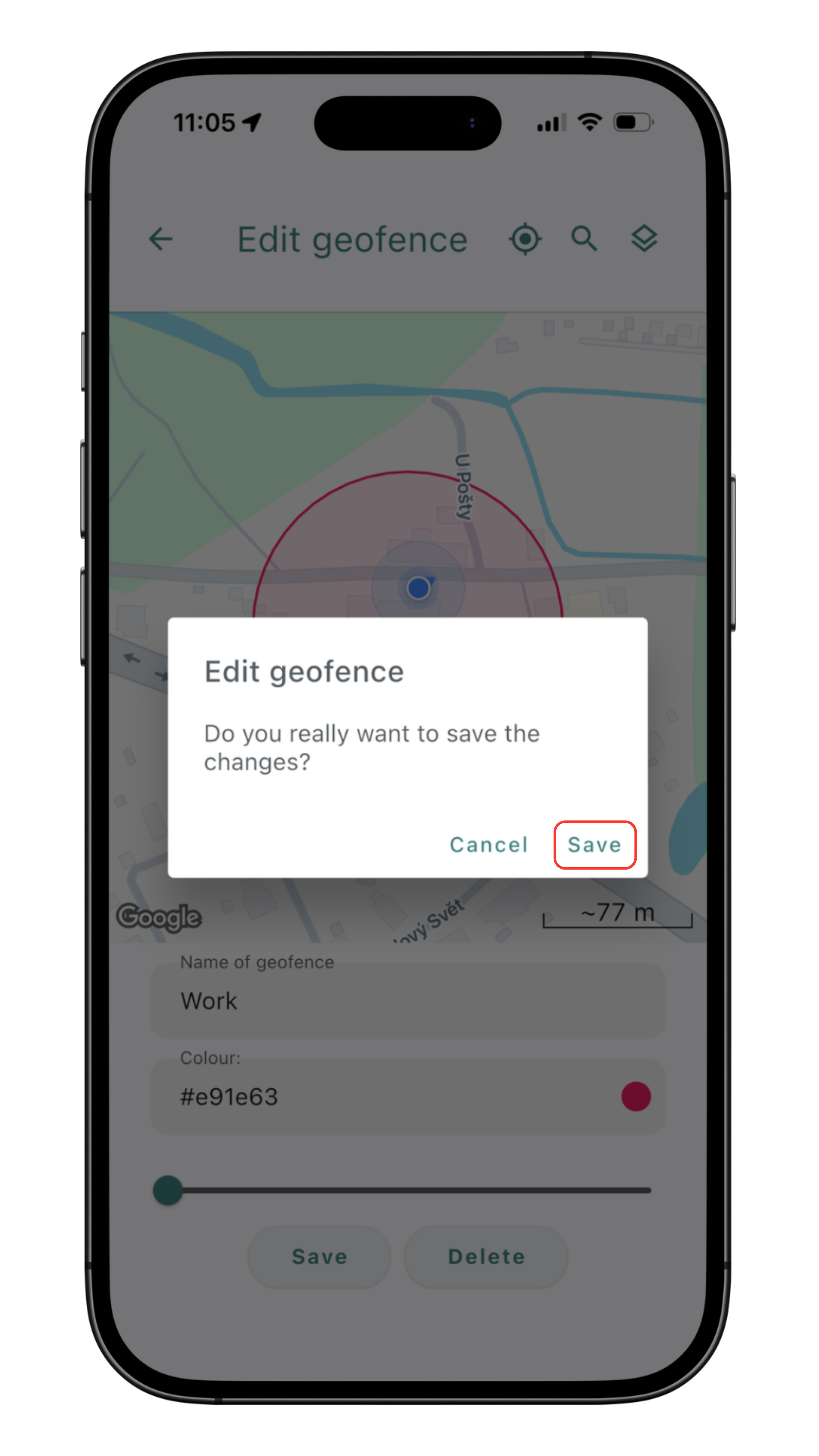
After saving the geofence, set whether you want to be notified when its boundary is crossed.
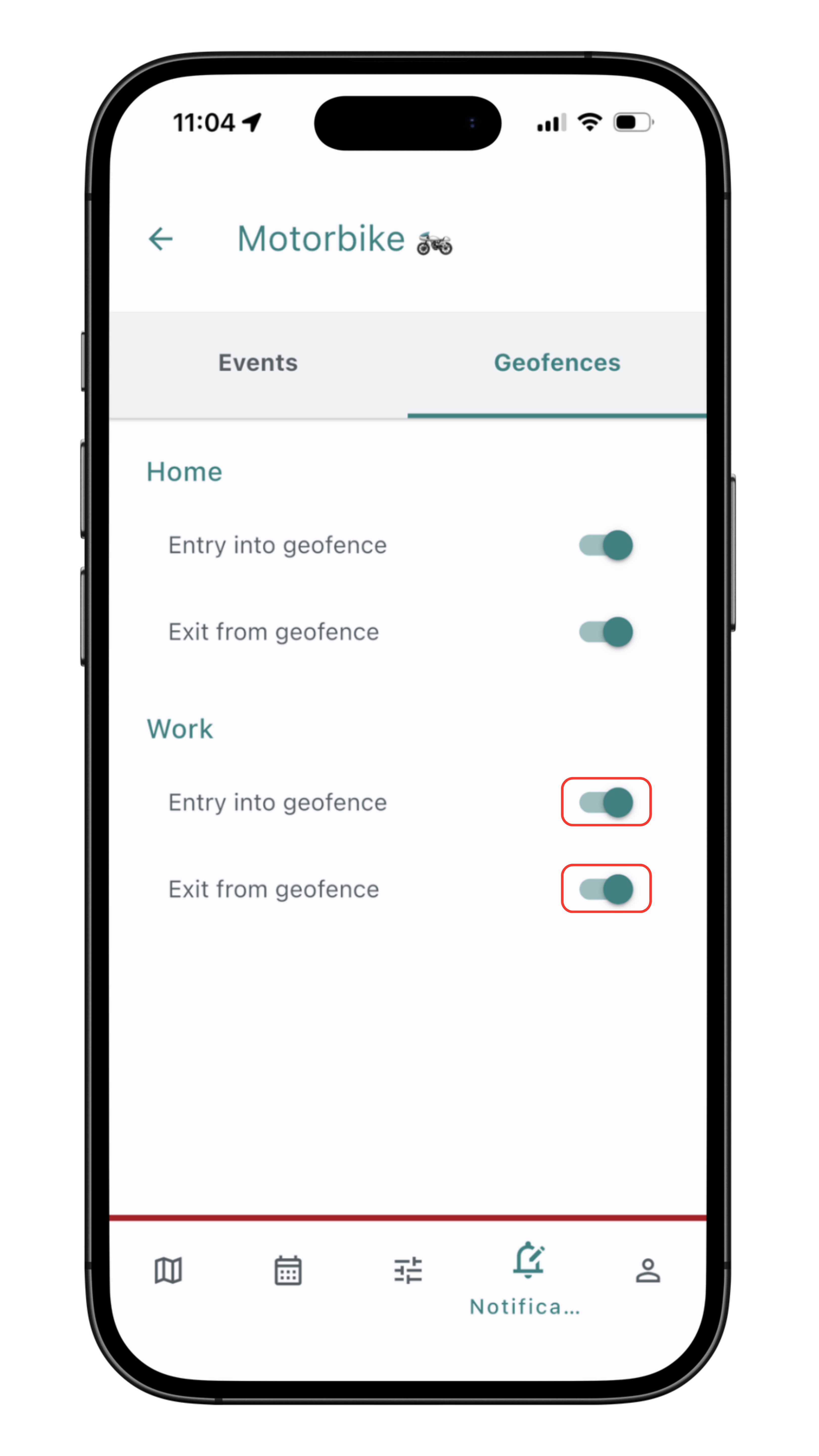
Choose, according to your preferences, which notifications you want to receive about crossing the geofence boundary.
Displaying geofences on the map
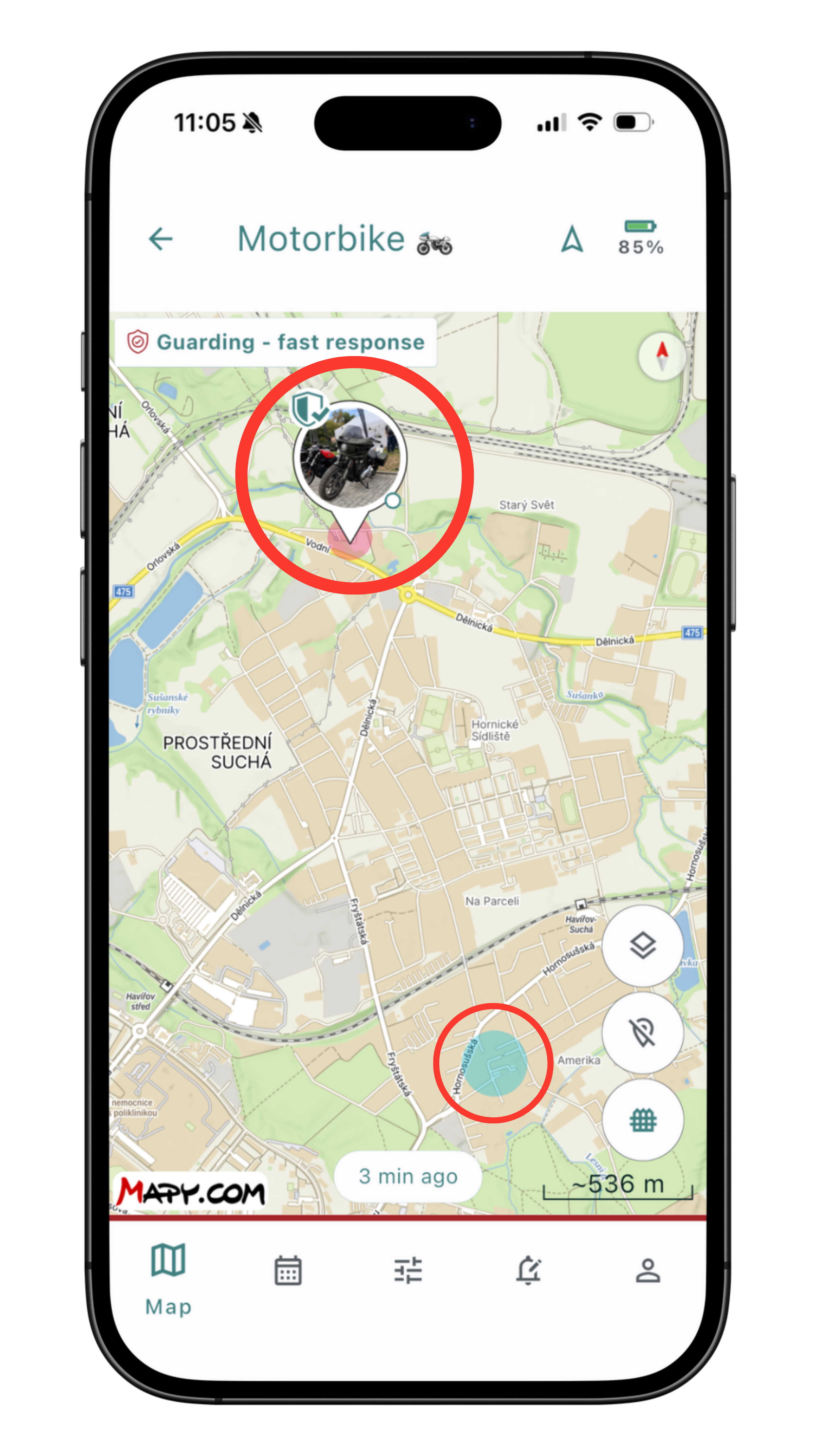
Geofences on the map
You'll also see the outlines of your geofences on the map by default.
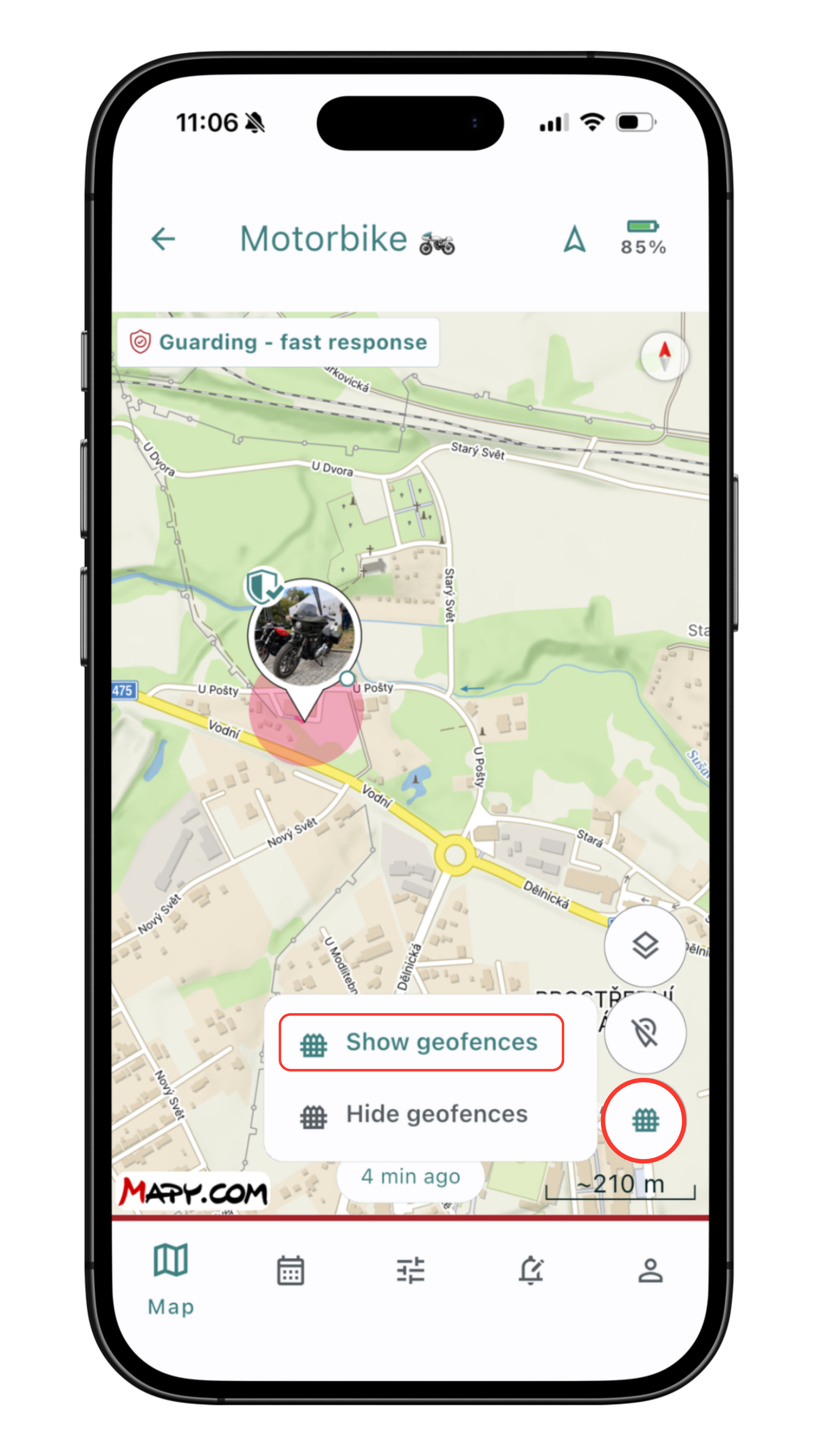
Show / hide
With a single tap, you can hide or show your geofences.
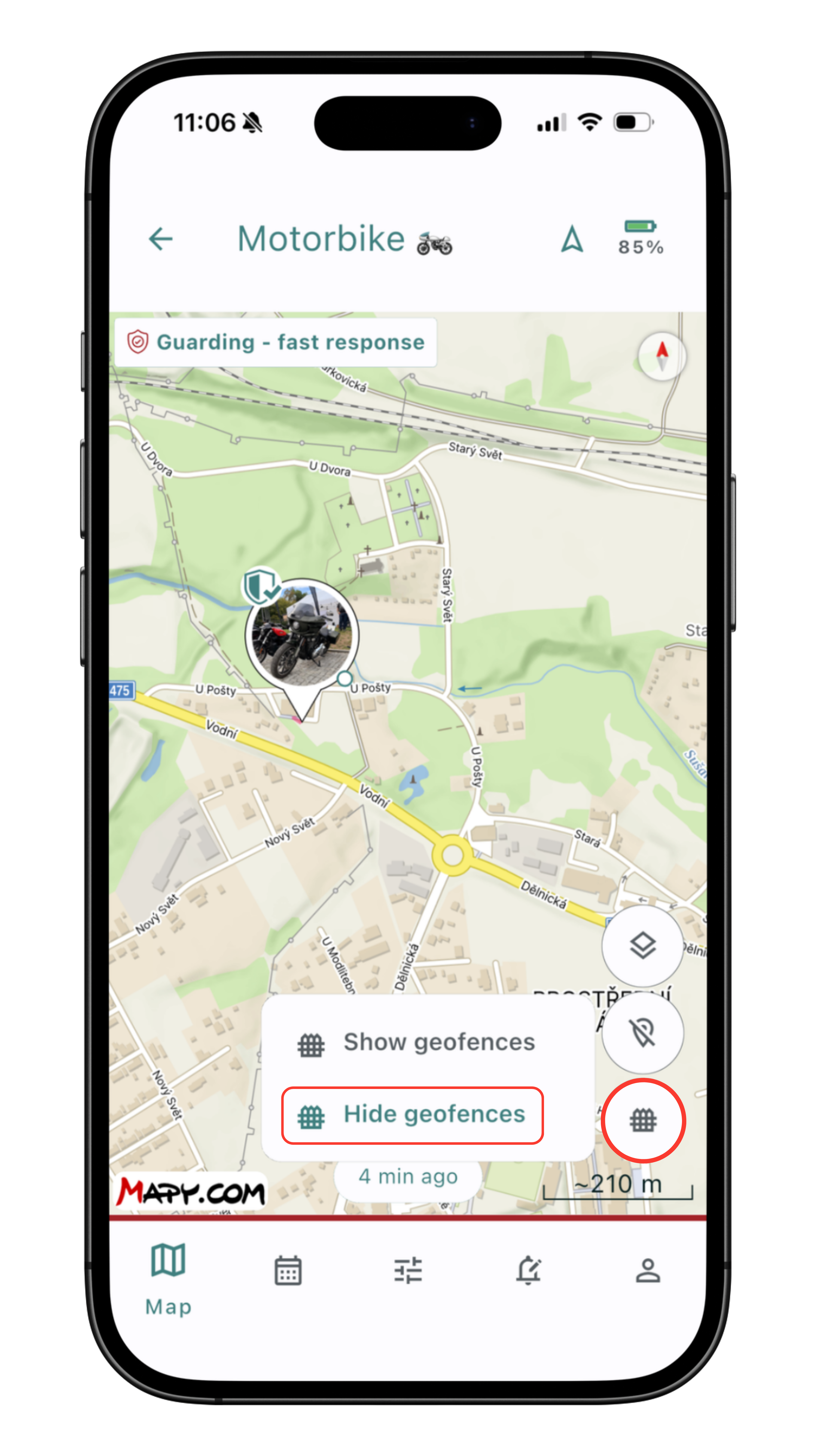
Visibility doesn't matter
Geofences remain active even after you hide them from the map.
📢 Getting geofences to work properly
For timely alerts when the geofence boundary is crossed, we recommend using a mode that records the route. Otherwise, Mala will only report entering/leaving once the next regular position update occurs, based on the mode's specification.
🐾 Smart modes with geofences – Dog in the garden and Children to/from school safely
When you choose a profile for your tracker, you can pick from several modes that determine how the device behaves and how often it sends its location. Two of them are designed specifically for guarding a defined area using a geofence – for the Animal profile, that's the Dog in the garden mode, and for the Personal usage profile, it's the Children to/from school safely mode. Both work on the same principle and save battery.
As long as the tracker stays inside the geofence, its location isn't sent to the app, which saves battery. As soon as it crosses the geofence boundary, you'll get a notification within 2 minutes at the latest, and the tracker starts behaving as if it were in a mode with trip recording – it records and sends its location. In the app, the same mode still appears to be set the whole time. Once it returns inside the geofence, sending the location stops and battery saving resumes.
💡 Why exactly 2 minutes? This short delay exists to filter out what's known as GPS signal bounce. In difficult conditions – near a fence, a house wall, a garage, or a doghouse – the signal can briefly reflect and appear to "jump" outside the geofence. The delay makes sure you only get notified once the tracker is confident the object is genuinely outside the defined geofence area.
🔋 Estimated battery life while guarding inside the geofence is up to 20 days.
This battery life applies as long as the object stays inside the geofence and its location isn't being sent. Once the dog leaves the geofence and the tracker starts recording its route, power consumption matches a regular trip-recording mode — so battery life temporarily shortens, then lengthens again once it returns inside the geofence.
How to set up the mode
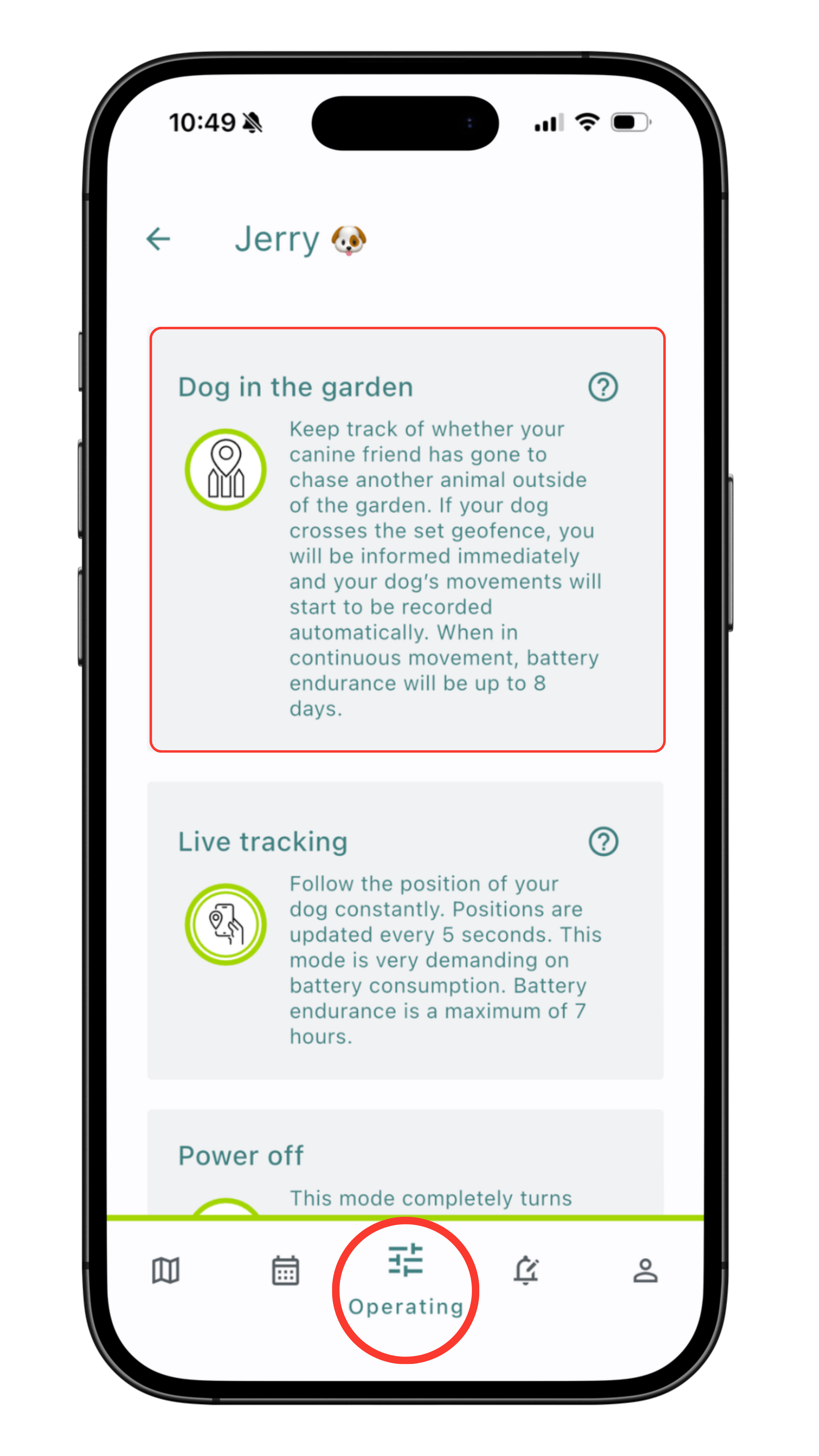
Choose the mode
In the tracker controls, select the Dog in the garden mode (Animal profile), or Children to/from school safely (Personal usage profile).
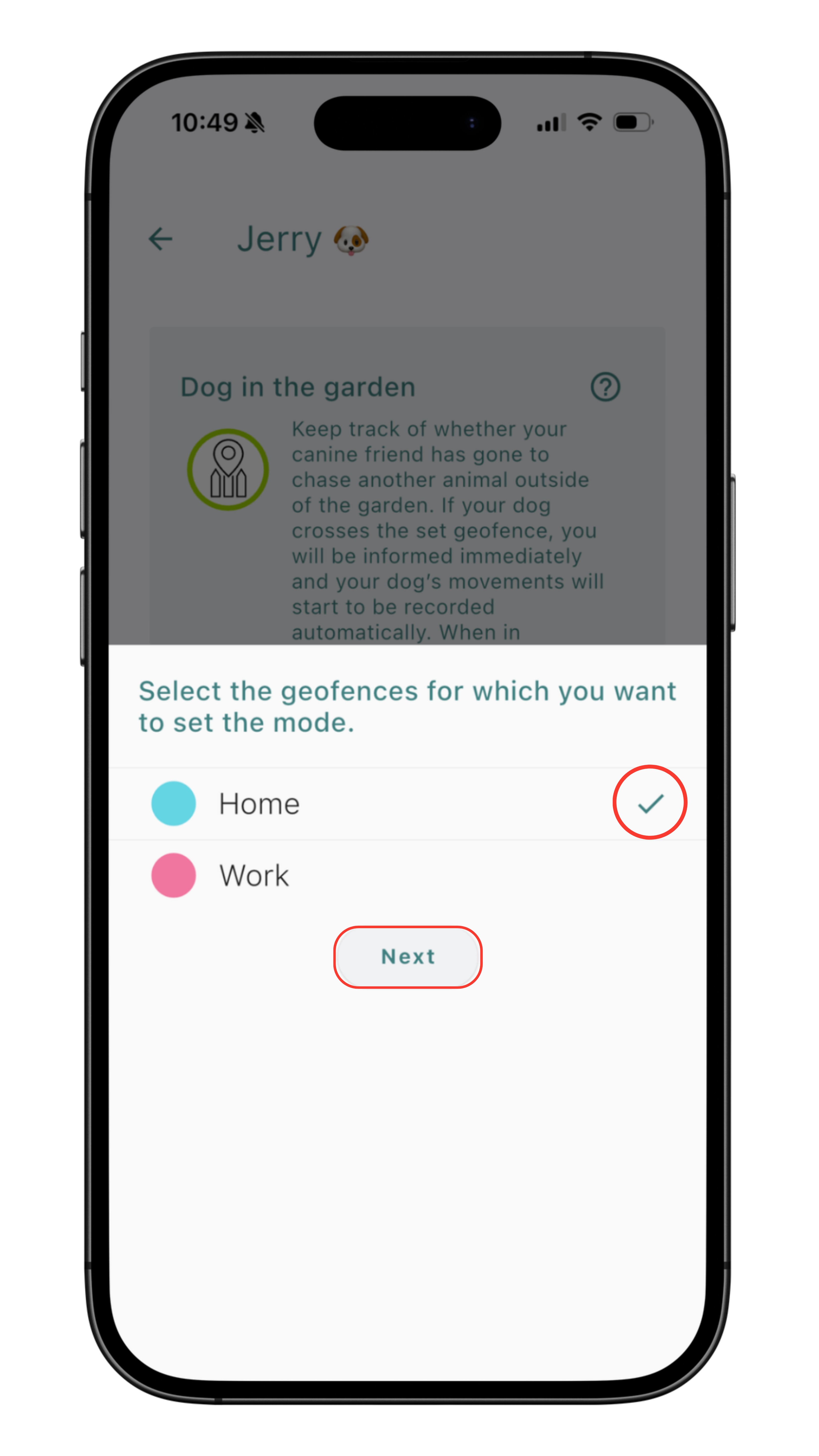
Choose the geofence
Choose the geofence you want the mode to guard. You can also select several geofences at once — for example, the garden and the house.
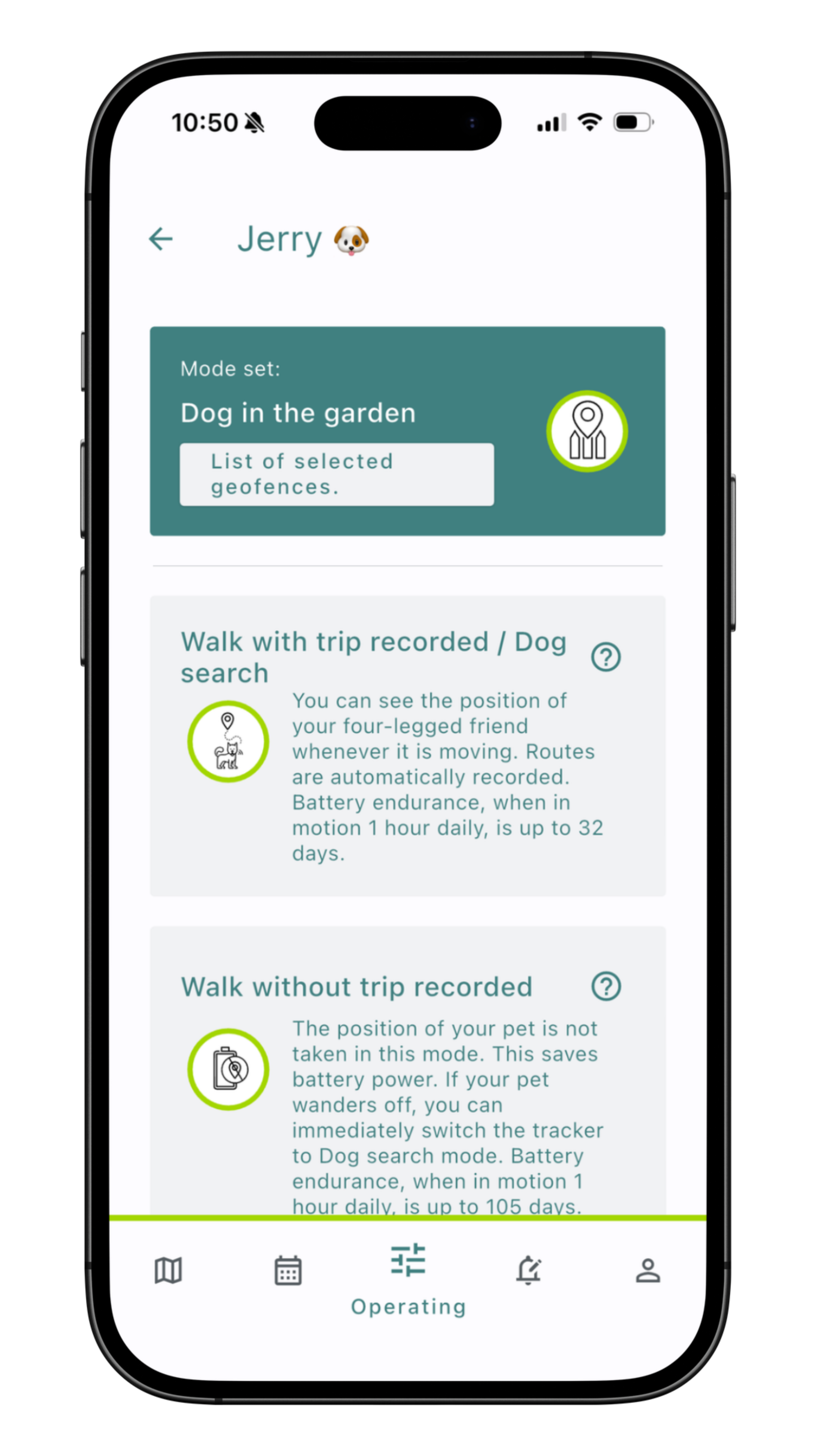
The mode is active
Done! The mode now guards the selected geofence for you. In the overview, you can see which geofence is active.
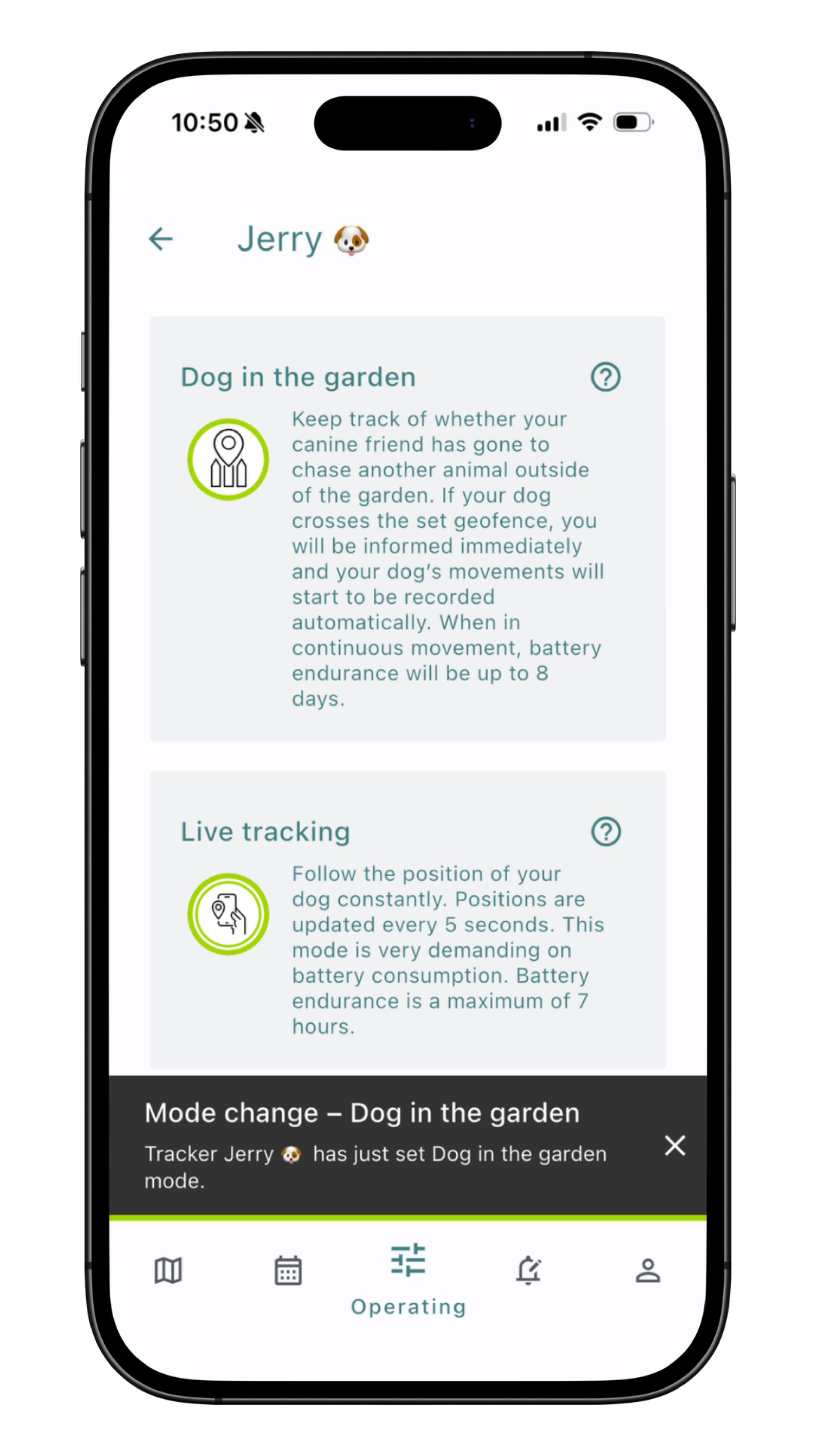
Notifications are always on
In this mode, notifications for entering and leaving the geofence are always active. That's why they can't be turned off and appear grayed out — they make sure the mode always alerts you.
Tips and recommendations
If you haven't worked with geofences yet and aren't sure how to use them to make life with Mala easier, we've also put together our tips and recommendations. 🗺️
Geofences for every profile
You can use geofences with every type of Mala GPS tracker profile — for an animal, a person, a bike, or an asset. In the app, simply choose the matching profile and set up a geofence to suit your needs. As soon as the tracked object crosses the geofence's boundary, you'll receive an alert.
Keeping kids safe on the way to school
Protect your children smartly, without having to call or text. Set up a geofence around your home and school, and get notified when your kids arrive at school or come back home. A simple, effective, and reassuring solution for everyday parenting concerns.
Keep your pets safe with a geofence
If you have curious pets at home in the garden, keeping them safe can sometimes be tricky. A geofence is the ideal solution to help protect your pets without necessarily restricting their freedom. Set the geofence boundary around your property and get notified if your pet leaves the safe area.
Why is the minimum geofence size 80 meters?
A geofence can be set up with a minimum radius of 80 meters. The reason is the possible deviation between the signal and the GPS tracker's actual position, caused by so-called GPS signal bounce. The GPS signal is most accurate in open areas with a clear view of the sky. In denser built-up areas, and especially around house walls or metal objects, the signal can reflect off these objects and even cross the geofence boundary.
❗If your pet may have escaped the geofence, wait a little while before starting to search. We always recommend staying calm in these situations. It might just be a GPS signal bounce, in which case the tracker's position should gradually return to its real location.
📌 Summary — what to remember
- A geofence is an area on the map — you'll get an instant notification when its boundary is crossed.
- You can set alerts separately for entering and leaving the area.
- The minimum geofence diameter is 80 meters — due to possible GPS signal deviation.
- For timely alerts, we recommend using a mode with trip recording enabled.
- Geofences stay active even if you hide them on the map.
- Geofences work with every profile — animal, bike, personal usage, and asset.
❓ Frequently asked questions
- What is a geofence in the Mala GPS app?
- An area on the map that sends a notification to your phone when it's crossed.
- How do I set up a geofence?
- In the app menu, select Geofences, tap "+", and tap the map to set the area's center. Then name the geofence and set up your alerts.
- Why is the minimum geofence size 80 meters?
- The GPS signal can deviate from the tracker's actual position — a smaller geofence would trigger false alarms.
- Do geofences still work if I hide them on the map?
- Yes, hiding them only turns off their display on the map. The geofence stays active and notifications keep coming.
- What should I do if the tracker reports leaving the geofence, but my pet didn't go anywhere?
- It's likely a so-called GPS signal bounce. Wait a little while — the position should return to the real location.
Step 4 of 5 — Getting started guide
Next article
How to make the most of UNIVERSAL GPS tracker Mala
Have a question? We're here for you!

Email: info@malagps.cz
Address: U Pošty 1163/13, 735 64 Havířov – Prostřední Suchá, Czech Republic
Stay connected with us on social media too


